Did an enticing offer to win an iPhone 14 catch your attention? Be careful! Malicious websites are trying to trick unsuspecting users with the promise of winning the much-desired iPhone 14. In this article, we uncover the strategies used by these cybercriminals and provide essential tips to help you stay safe and avoid becoming a victim of such online scams.
The Apple iPhone 14 Winner scam is a deceptive campaign that can be found on various websites, appearing in multiple forms. The primary goal of these scams is to lure users into believing they have either won an iPhone 14 or have a chance to win one. It is vital to recognize that such scams have no affiliation with Apple and are solely intended to deceive users into revealing sensitive information, making unnecessary payments, or downloading potentially dangerous software.
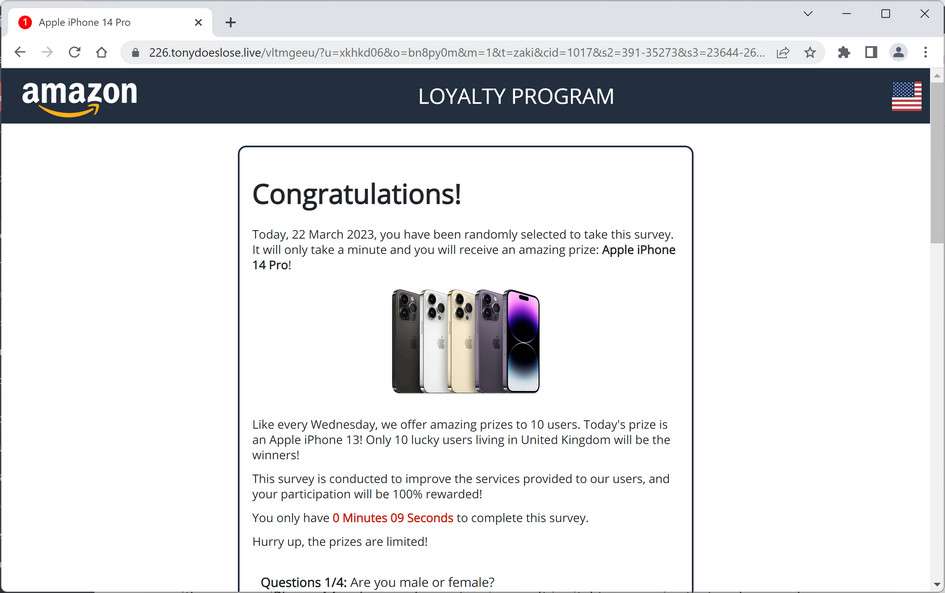
This is the message that the Amazon Loyalty Program page will show you:
Congratulations! Today, 22 March 2023, you have been randomly selected to take this survey. It will only take a minute and you will receive an amazing prize: Apple iPhone 14 Pro!
Like every Wednesday, we offer amazing prizes to 10 users. Today’s prize is an Apple iPhone 13! Only 10 lucky users living in United Kingdom will be the winners!
This survey is conducted to improve the services provided to our users, and your participation will be 100% rewarded!
You only have 1 Minutes 23 Seconds to complete this survey.
Hurry up, the prizes are limited!
Congratulations visitor!
In appreciation of your loyalty, we’d like to offer you an exclusive chance to get a Apple iPhone 14 today
All you have to do is choose the correct gift box. Good Luck! [OK]
How the Apple iPhone 14 Winner scam works?
In some instances, the Apple iPhone 14 Winner scam displays a pop-up window congratulating users, claiming that an organization such as the “National Consumer Center” wishes to thank them for their loyalty. Users are then instructed to spin a prize wheel to claim their “special prize.” After the wheel spin, users may be informed that their attempt was unsuccessful or that they have won an iPhone 14. Subsequently, a page with fake testimonials from supposed previous winners is shown, often in the style of Facebook comments.
Clicking the “Claim Prize” button might lead users to a page on the Chrome Web Store, promoting unwanted software like the Sport Engine browser hijacker.
In other cases, the scam presents a congratulatory pop-up window, providing users with a chance to win an iPhone 14 as a token of appreciation for their loyalty. The background page may feature images of gift boxes that users need to click on to claim their prize.
It is essential to note that the Apple iPhone 14 Winner scam can appear in various designs and employ different tactics. Often, such scams redirect users to phishing websites that gather any information entered, targeting login details, personal data, and financial information. In some cases, these scams may lead to pages requesting payment for prize delivery or release, or promote software or other content.
How to protect against the Apple iPhone 14 Winner scam?
To protect yourself from the Apple iPhone 14 Winner scam and similar deceptions, adhere to the following guidelines:
Exercise caution with offers or prizes that seem too good to be true
Avoid interacting with suspicious pop-up windows or links
Refrain from providing personal or financial information on unknown websites
Utilize reputable antivirus software and ensure it is regularly updated
Report dubious websites to your browser or search engine provider
Why am I seeing the Apple iPhone 14 Winner pop-up ads?
You are seeing the Apple iPhone 14 Winner pop-ups because your device is infected with malware, spam push notification ads, or a site you have visited has redirected your browser.
Less than reputable sites can display malicious ads that redirect your browser to the Apple iPhone 14 Winner pop-up scam to generate advertising revenue. If this happens, you can close the page and install an ad blocker like AdGuard to block the malicious ads. However, if you are continuously seeing pop-ups like the Apple iPhone 14 Winner pop-up scam, then your computer might be infected with a malicious program and you need to scan your device for adware and remove it.
If your computer starts redirecting you to the Apple iPhone 14 Winner ads for no reason then you most likely have malware installed on the computer. To check your computer for adware, browser hijackers, or other malicious programs and remove them for free, please use the guide below.
Removal Instructions for Apple iPhone 14 Winner Ads
This malware removal guide may appear overwhelming due to the number of steps and numerous programs that are being used. We have only written it this way to provide clear, detailed, and easy-to-understand instructions that anyone can use to remove malware for free. Please perform all the steps in the correct order. If you have any questions or doubts at any point, stop and ask for our assistance.
Browser hijackers and adware can infect Windows, Mac, or Android devices, so we’ve covered below all these operating systems. Depending on which operating system is installed on the device you’re seeing the Apple iPhone 14 Winner pop-up ads, please click on the operating system icon below and follow the displayed steps to remove it.
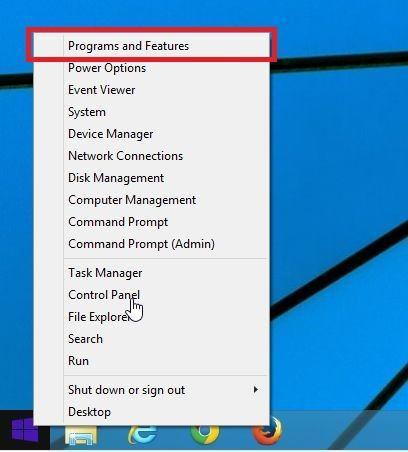
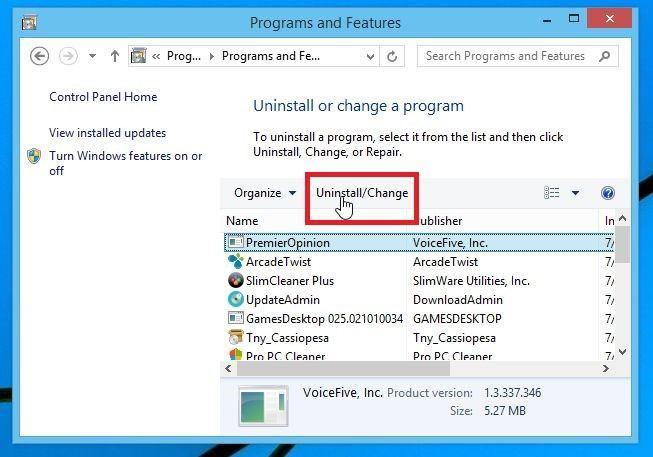
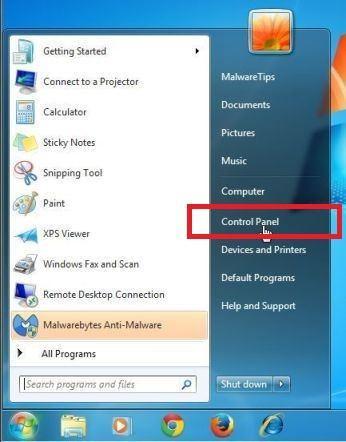
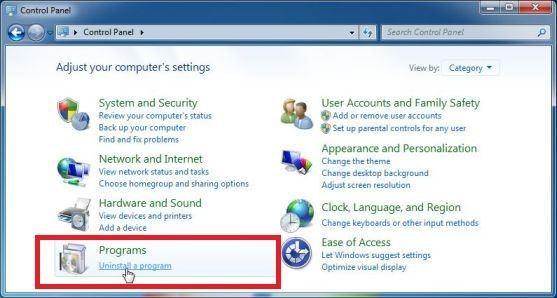
In this first step, we will manually check if any unknown or malicious programs are installed on the computer. Sometimes adware and browser hijackers can have a usable Uninstall entry that can be used to remove them.
Windows 11Windows 10Windows 8Windows 7
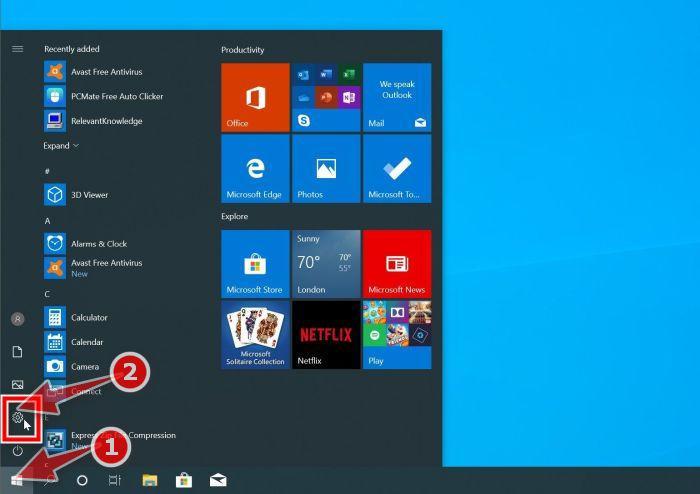
Press the Windows key + I on your keyboard to open the Settings app.
First, open Windows Settings by pressing Windows+I on your keyboard. You can also right-click your Start button and select “Settings” from the list.
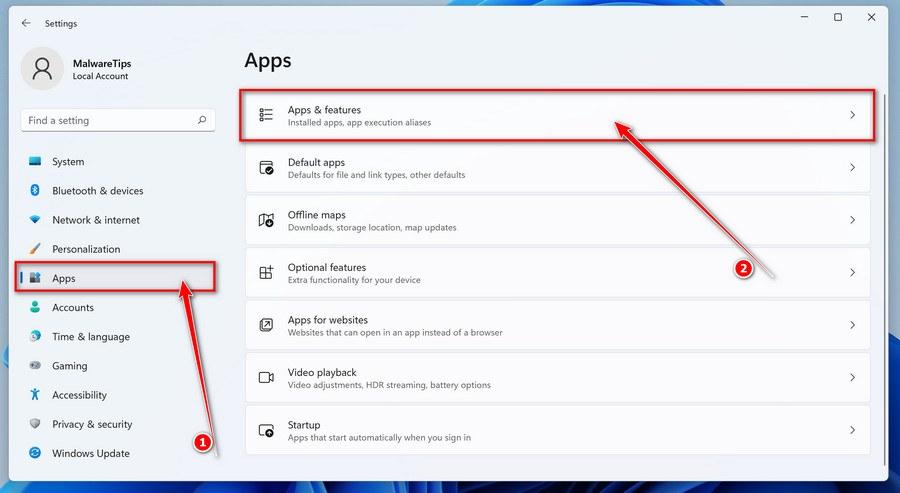
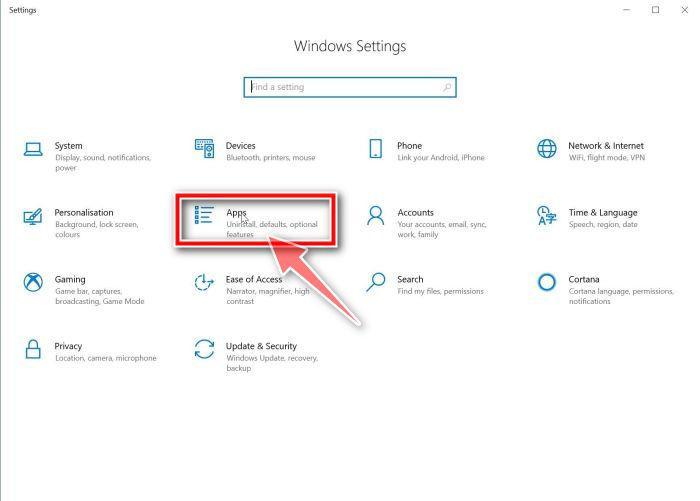
In the Settings app, click on “Apps” and then “Apps & features”.
When Settings opens, click “Apps” in the sidebar, then select “Apps & Features”.
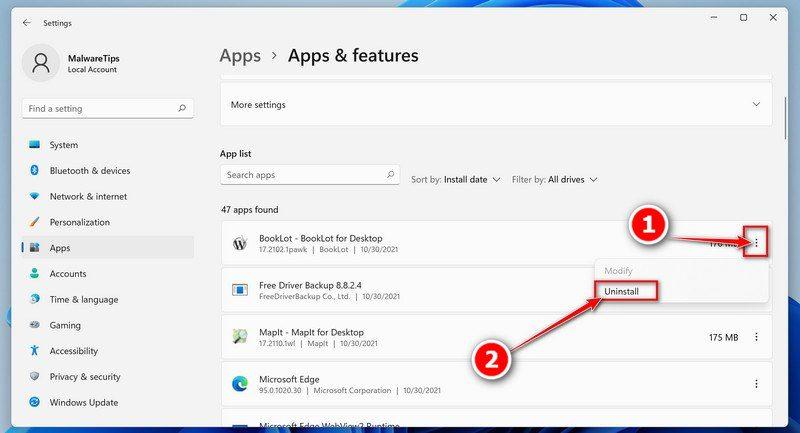
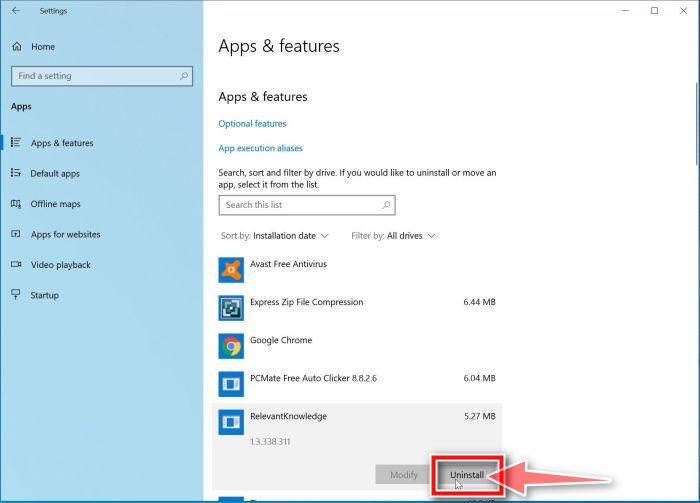
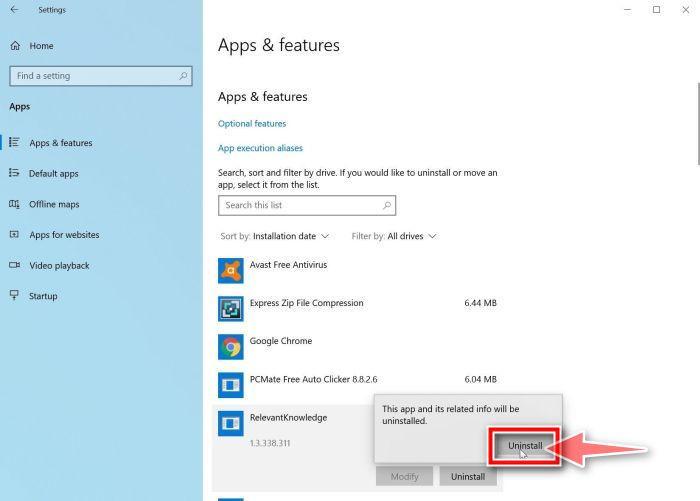
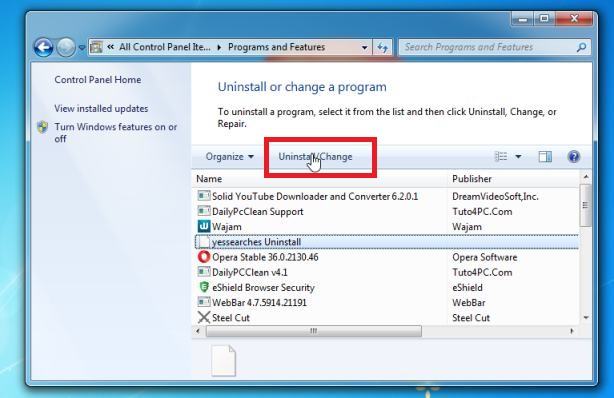
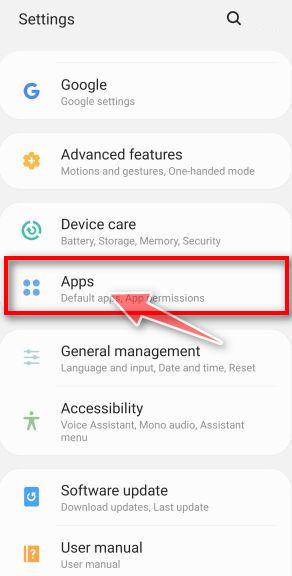
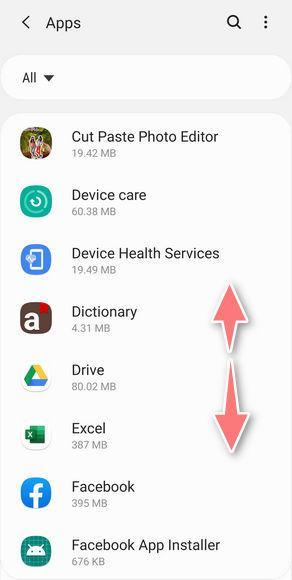
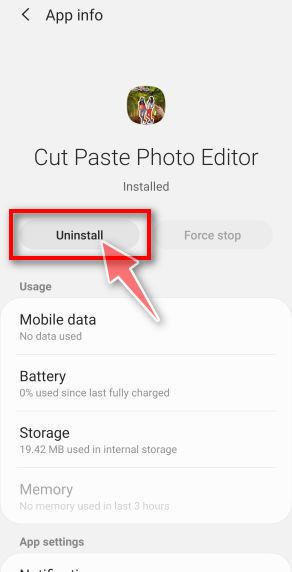
Find the malicious program in the list of installed apps and uninstall it.
In Apps & Features settings, scroll down to the app list and search for unknown or suspicious programs. To make things easier, you can sort all installed programs by their installation date. To do this, click “Sort by” and select “Install date”. Look out for any suspicious program that could be behind all the drama – anything you don’t remember downloading or that doesn’t sound like a genuine program. When you find a malicious program, click the three dots button beside it and select “Uninstall” in the menu that appears.
If you have checked your computer for malicious programs and did not find any, you can proceed with the next step in this guide.
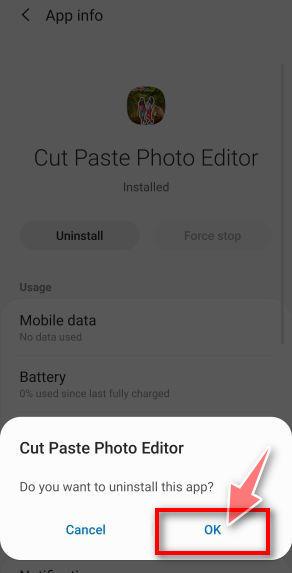
Follow the prompts to uninstall the program.
In the next message box, confirm the uninstall process by clicking on Uninstall, then follow the prompts to uninstall the malicious program. Make sure to read all of the prompts carefully, because some malicious programs try to sneak things in hoping that you won’t read them closely.
If you are experiencing difficulty while attempting to uninstall a program, you can use Revo Uninstaller to completely remove the unwanted program from your computer.
Now that the malicious programs have been removed from your computer, we can proceed with the next step in this guide.
STEP 2: Reset browsers back to default settings
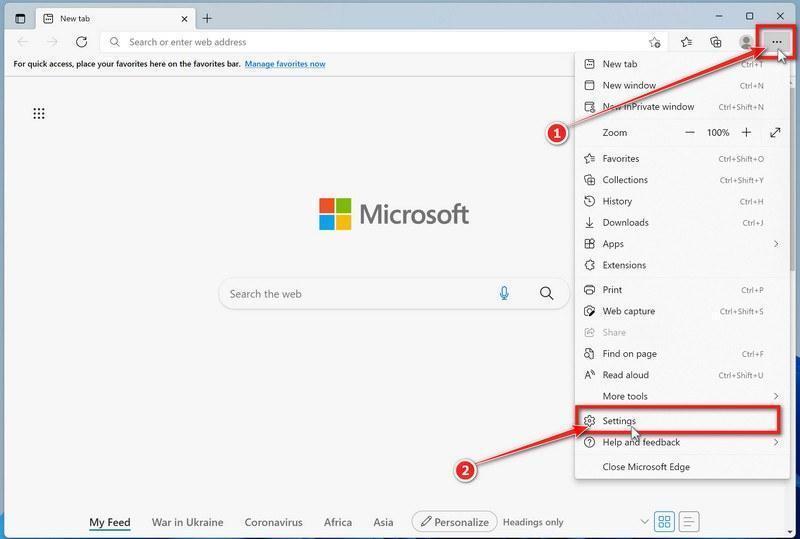
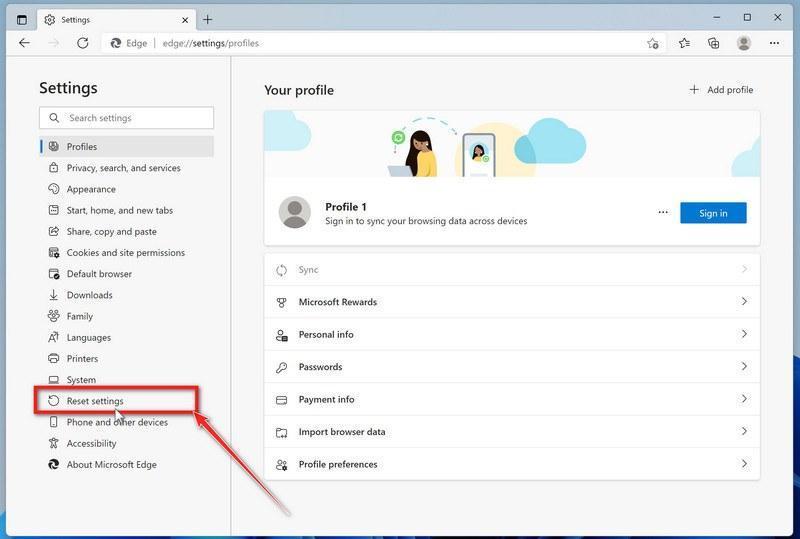
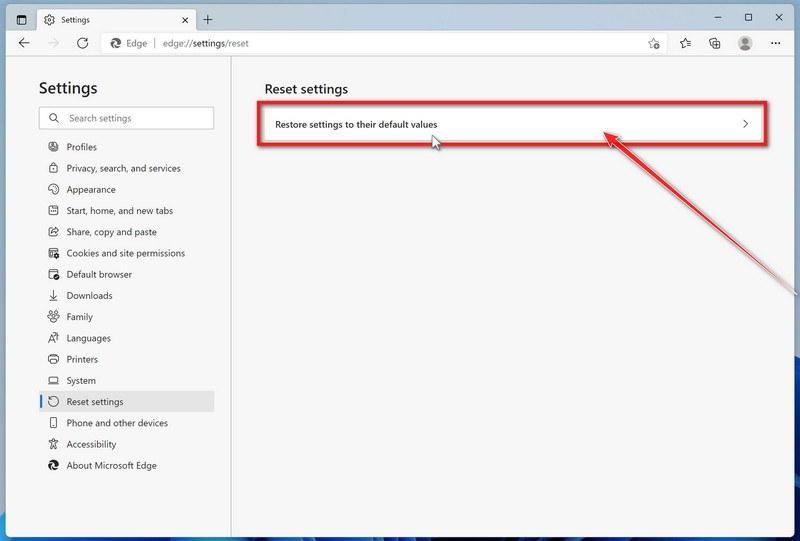
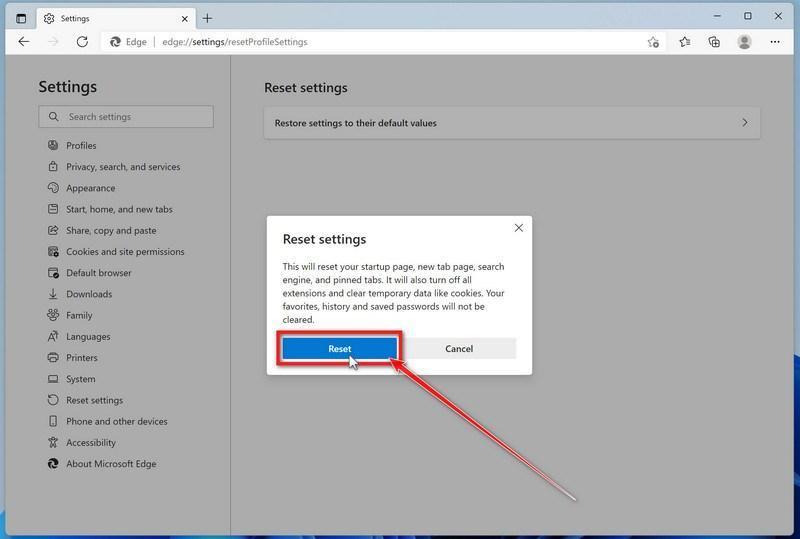
In this step, we will remove spam notifications, malicious extensions, and change to default any settings that might have been changed by malware. Please note that this method will remove all extensions, toolbars, and other customizations but will leave your bookmarks and favorites intact. For each browser that you have installed on your computer, please click on the browsers tab below and follow the displayed steps to reset that browser.
ChromeFirefoxMicrosoft EdgeInternet Explorer
Reset Chrome for Windows to default settings
We will now reset your Chrome browser settings to their original defaults. This will reset your startup page, new tab page, search engine, and pinned tabs. It will also disable all extensions and clear temporary data like cookies. Your favorites, history, and saved passwords will not be cleared.
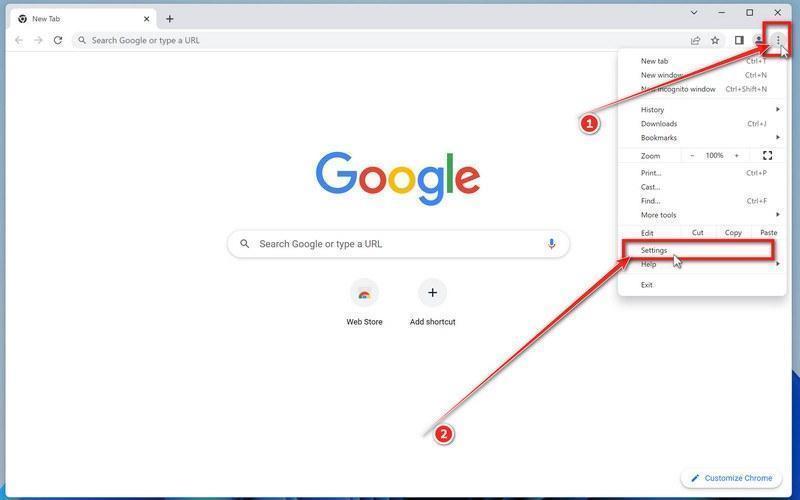
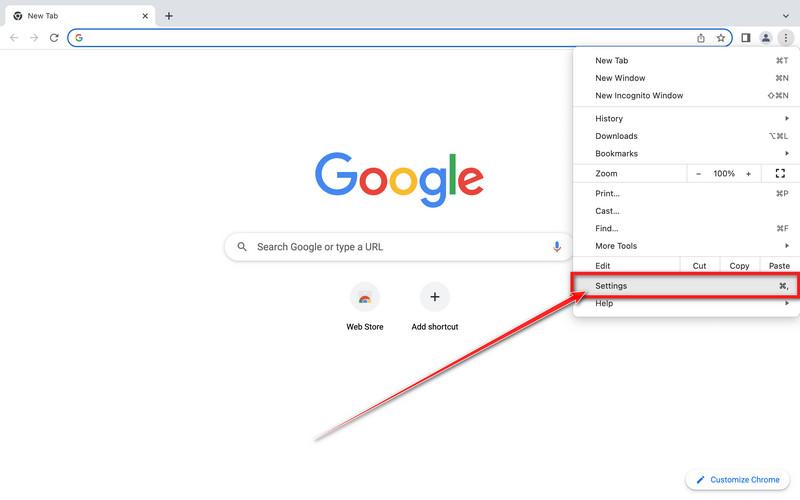
Click the three dots in the top-right corner and then click on “Settings”.
Open Chrome and click on the menu button (represented by three vertical dots) in the top right corner of the window. In the dropdown menu that opens, click “Settings“.
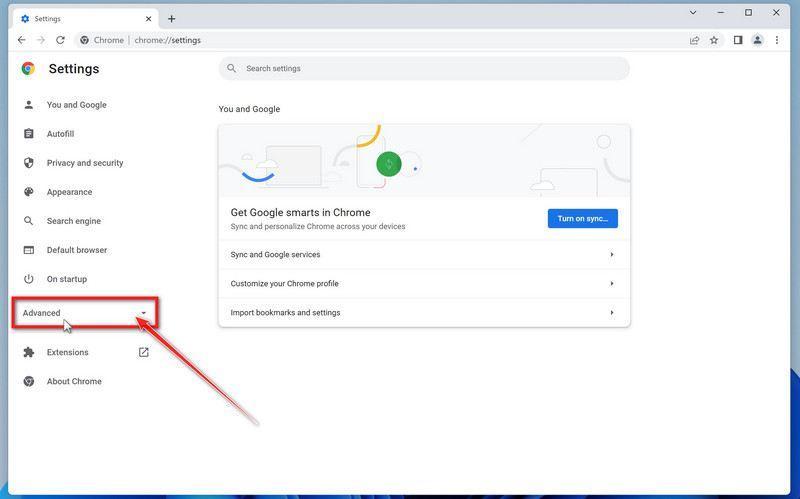
Click “Advanced”.
Chrome’s “Settings” should now be displayed in a new tab or window, depending on your configuration. In the left sidebar, click on the “Advanced” link.
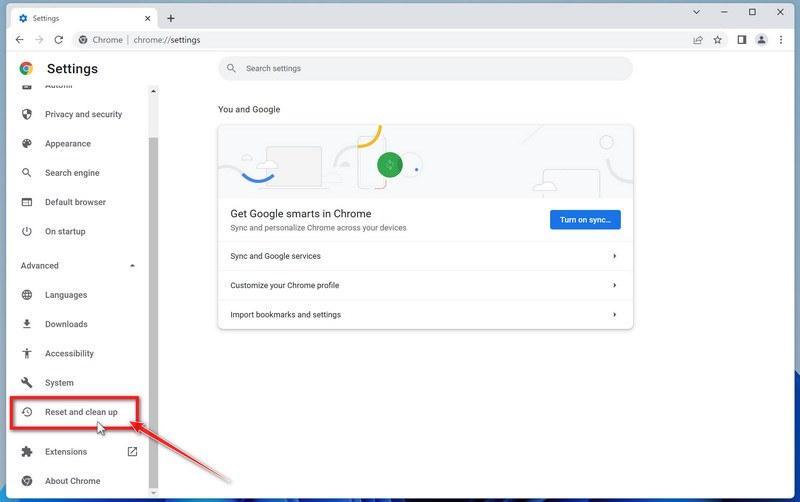
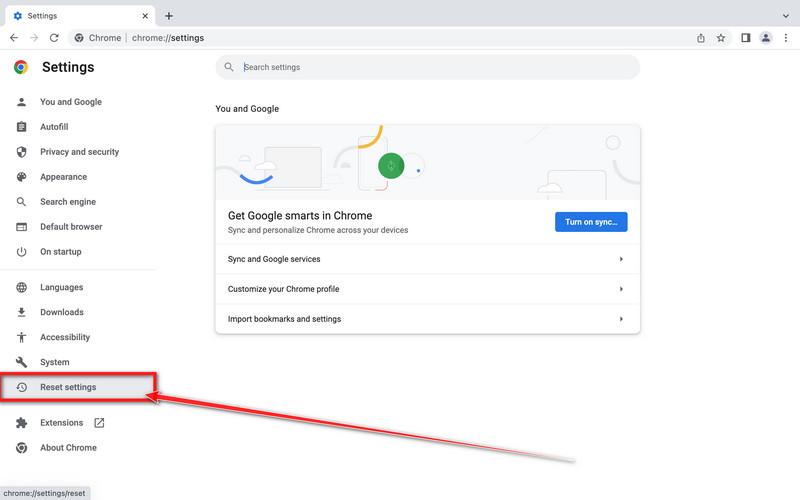
Click “Reset and clean up”.
In the left sidebar, under the “Advanced” section, click on “Reset and clean up“.
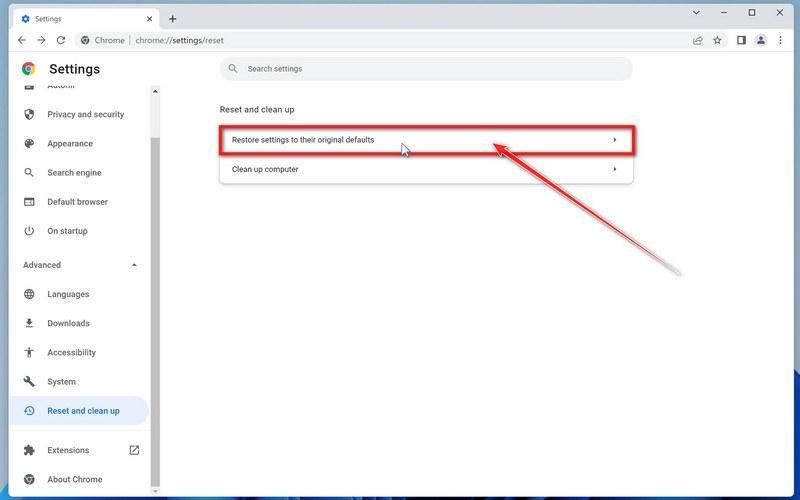
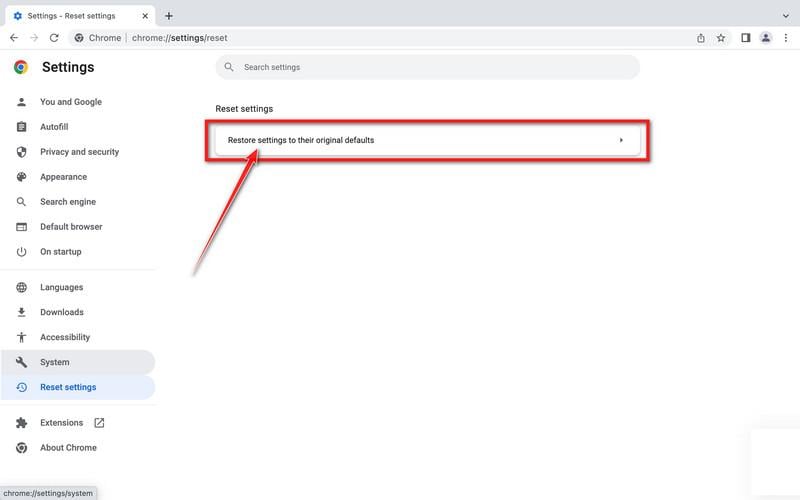
Click “Reset settings to their original defaults”.
In the main window, the “Reset and clean up” section is visible, as shown in the screenshot below. Click on “Reset settings to their original defaults“.
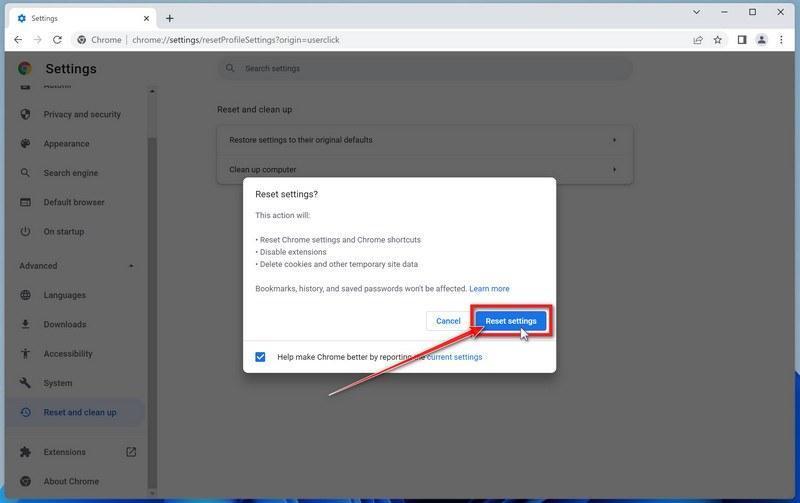
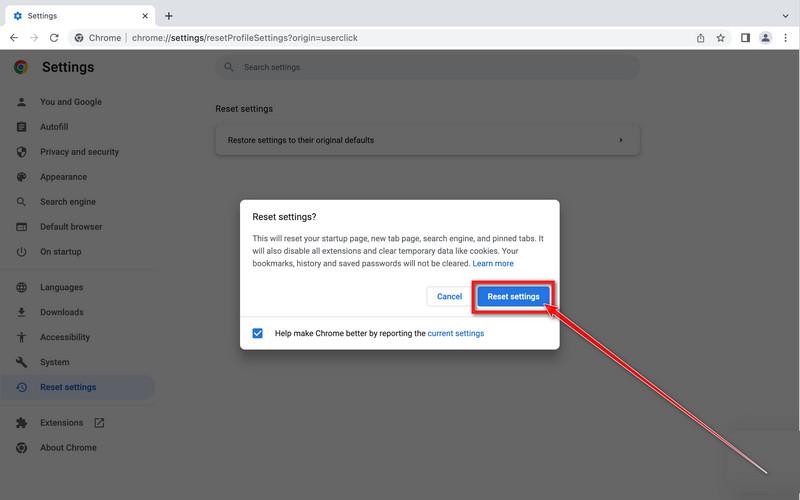
Click “Reset settings”.
A confirmation dialog will now be displayed, detailing the components that will be restored to their default state should you continue with the reset process. To complete the restoration process, click on the “Reset settings” button.
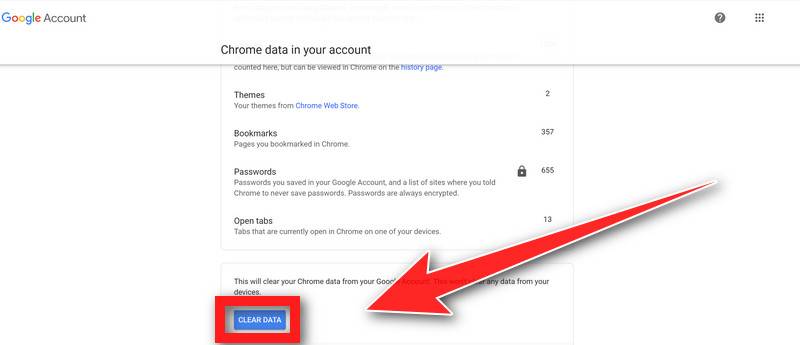
(Optional) Reset Chrome Data Sync.
In case a malicious extension reinstalls itself even after performing a browser reset, you have an additional option to reset the data sync for your browser. To do this, navigate to chrome.google.com/sync and click on the Clear Data button.
STEP 3: Use Malwarebytes Anti-Malware to remove malware and unwanted programs
In this third step, we will install Malwarebytes to scan and remove any infections, adware, or potentially unwanted programs that may be present on your computer.
Malwarebytes is one of the most popular and most used anti-malware software for Windows, and for good reasons. It is able to destroy many types of malware that other software tends to miss, without costing you absolutely nothing. When it comes to cleaning up an infected device, Malwarebytes has always been free and we recommend it as an essential tool in the fight against malware.
Download Malwarebytes for Windows.
You can download Malwarebytes by clicking the link below.
When Malwarebytes has finished downloading, double-click on the MBSetup file to install Malwarebytes on your computer. In most cases, downloaded files are saved to the Downloads folder.
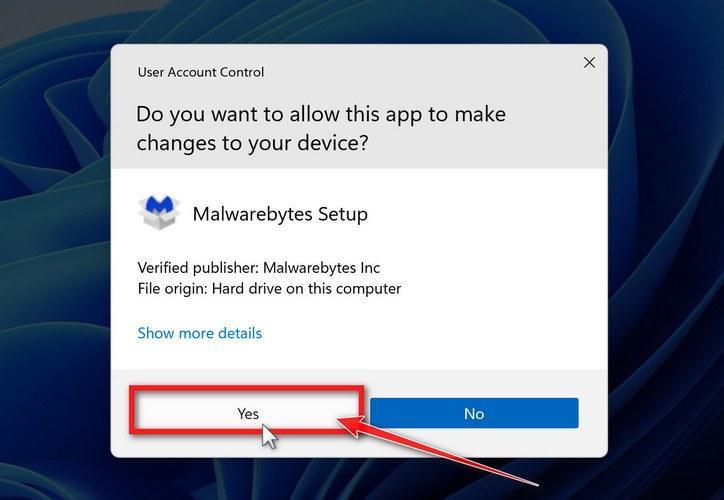
You may be presented with a User Account Control pop-up asking if you want to allow Malwarebytes to make changes to your device. If this happens, you should click “Yes” to continue with the Malwarebytes installation.
Follow the on-screen prompts to install Malwarebytes.
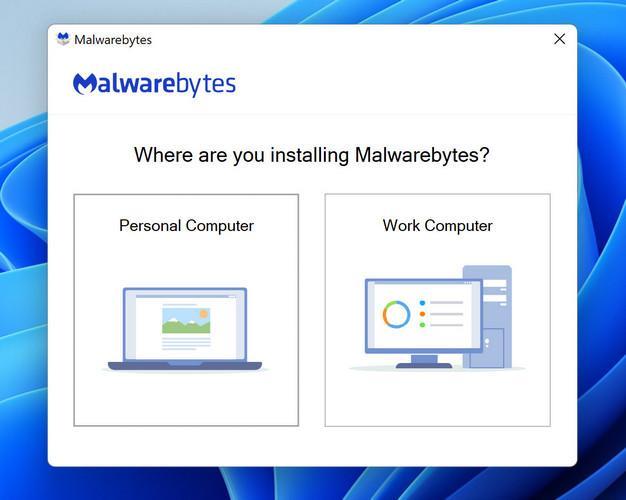
When the Malwarebytes installation begins, you will see the Malwarebytes setup wizard which will guide you through the installation process. The Malwarebytes installer will first ask you what type of computer are you installing this program on, click either Personal Computer or Work Computer.
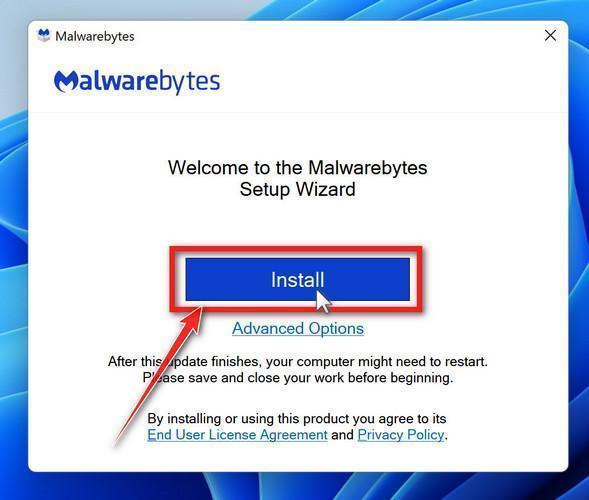
On the next screen, click “Install” to install Malwarebytes on your computer.
When your Malwarebytes installation completes, the program opens the Welcome to Malwarebytes screen.
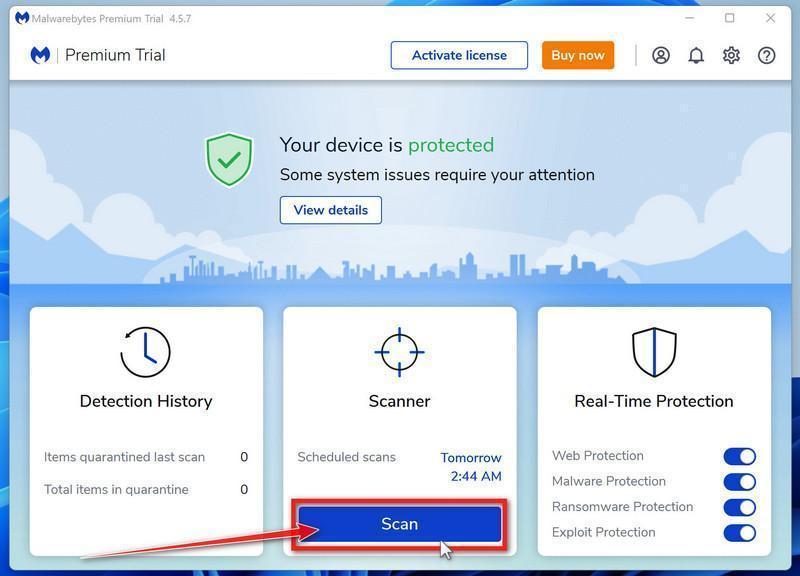
Click on “Scan”.
Malwarebytes is now installed on your computer, to start a scan click on the “Scan” button. Malwarebytes will automatically update the antivirus database and start scanning your computer for malicious programs.
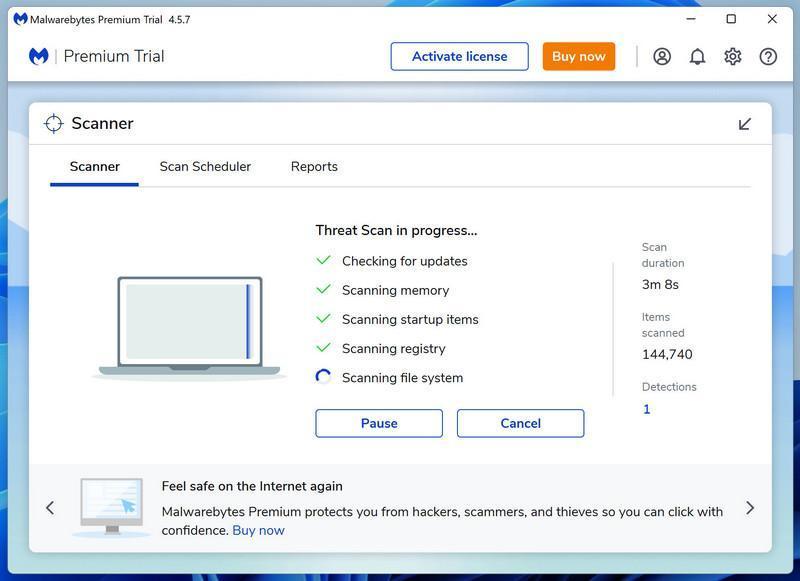
Wait for the Malwarebytes scan to complete.
Malwarebytes will now scan your computer for browser hijackers and other malicious programs. This process can take a few minutes, so we suggest you do something else and periodically check on the status of the scan to see when it is finished.
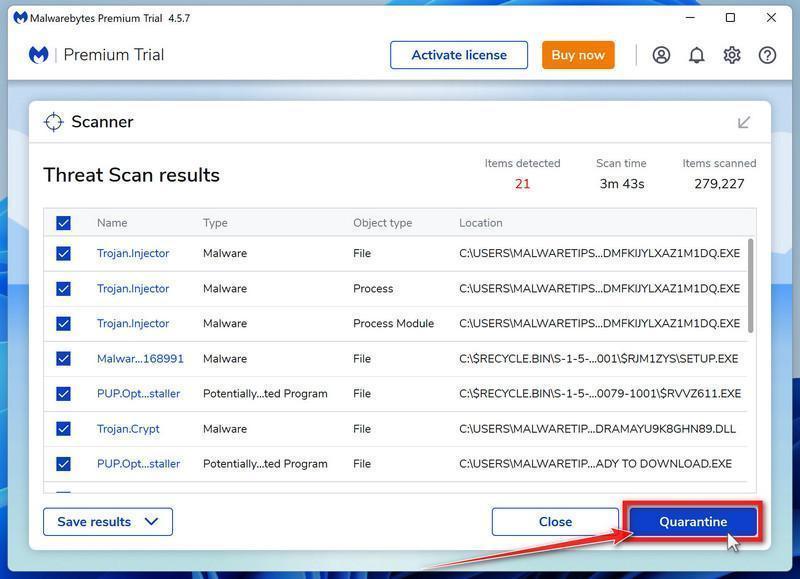
Click on “Quarantine”.
When the Malwarebytes scan is finished scanning it will show a screen that displays any malware, adware, or potentially unwanted programs that it has detected. To remove the adware and other malicious programs that Malwarebytes has found, click on the “Quarantine” button.
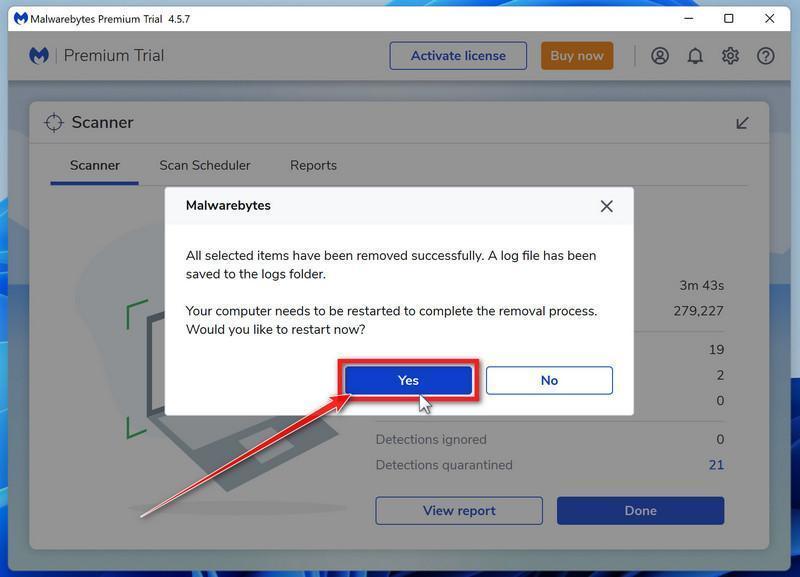
Restart computer.
Malwarebytes will now remove all the malicious files and registry keys that it has found. To complete the malware removal process, Malwarebytes may ask you to restart your computer.
STEP 4: Use HitmanPro to scan your computer for badware
In this next step, we will scan the computer with HitmanPro to ensure that no other malicious programs are installed on your device.
HitmanPro is a second-opinion scanner that takes a unique cloud-based approach to malware scanning. HitmanPro scans the behavior of active files and also files in locations where malware normally resides for suspicious activity. If it finds a suspicious file that’s not already known, HitmanPro sends it to its clouds to be scanned by two of the best antivirus engines today, which are Bitdefender and Kaspersky.
Although HitmanPro is shareware and costs $24.95 for 1 year on 1 PC, there is no limit on scanning. The limitation only kicks in when there is a need to remove or quarantine detected malware by HitmanPro on your system and by then, you can activate the one-time 30-days trial to enable the cleanup.
Download HitmanPro.
You can download HitmanPro by clicking the link below.
HITMANPRO DOWNLOAD LINK (The above link will open a new web page from where you can download HitmanPro)
Install HitmanPro.
When HitmanPro has finished downloading, double-click on “hitmanpro.exe” (for 32-bit versions of Windows) or “hitmanpro_x64.exe” (for 64-bit versions of Windows) to install this program on your computer. In most cases, downloaded files are saved to the Downloads folder.
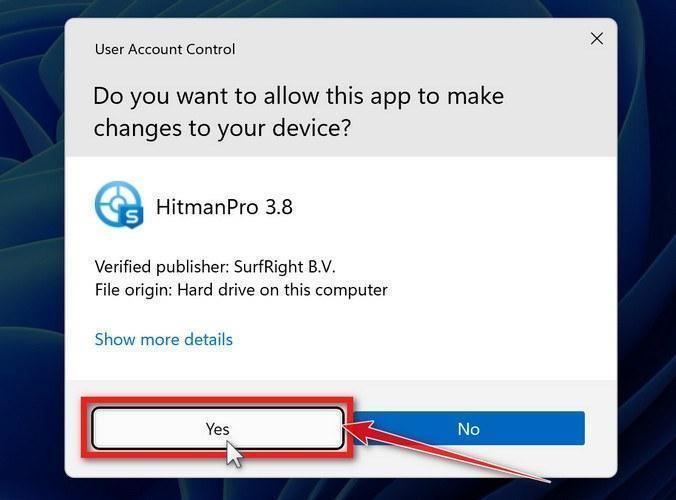
You may be presented with a User Account Control pop-up asking if you want to allow HitmanPro to make changes to your device. If this happens, you should click “Yes” to continue with the installation.
Follow the on-screen prompts.
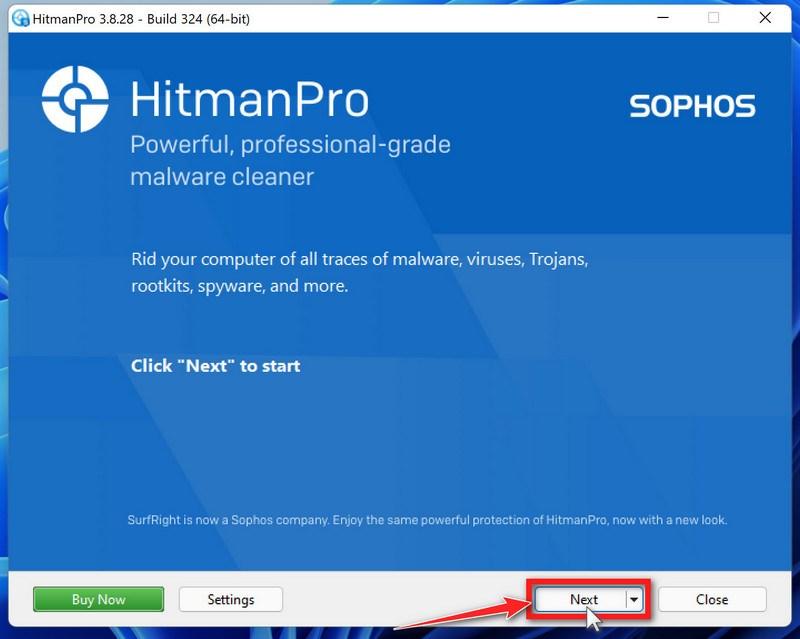
When HitmanPro starts you will be presented with the start screen as shown below. Click on the “Next” button to perform a system scan.
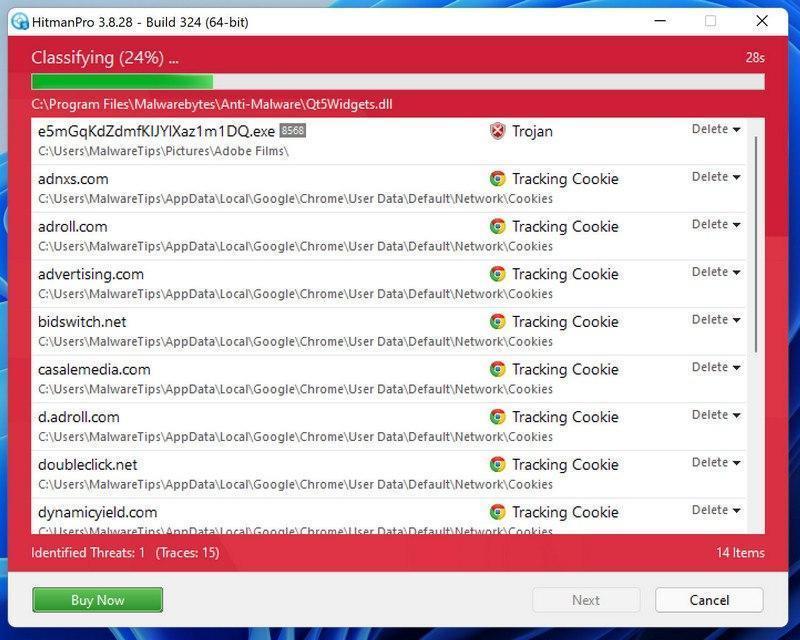
Wait for the HitmanPro scan to complete.
HitmanPro will now begin to scan your computer for malicious programs.
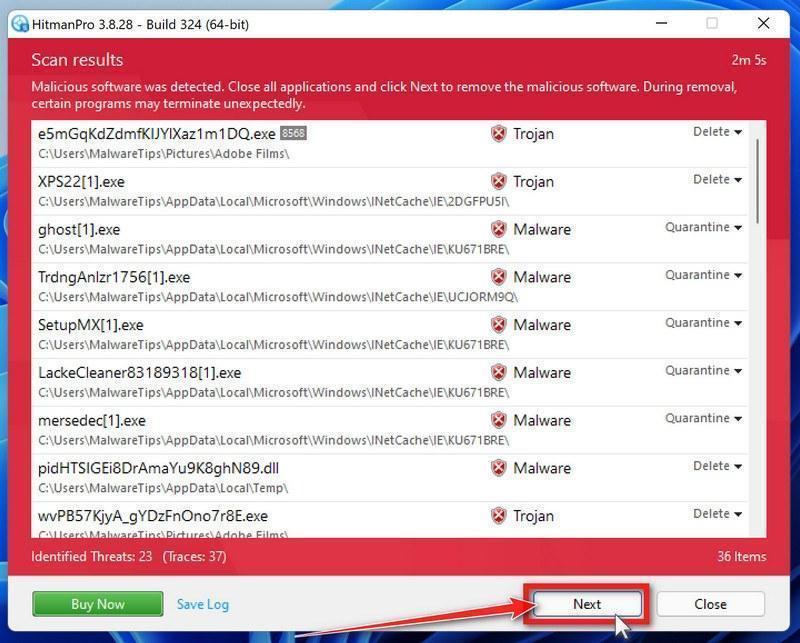
Click on “Next”.
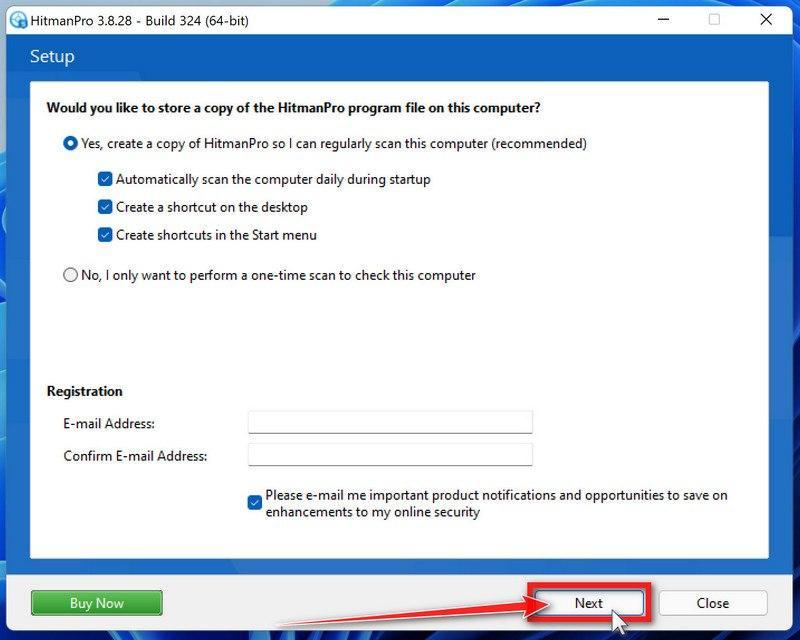
When HitmanPro has finished the scan, it will display a list of all the malware that it has found. Click on the “Next” button to have HitmanPro remove the detected items.
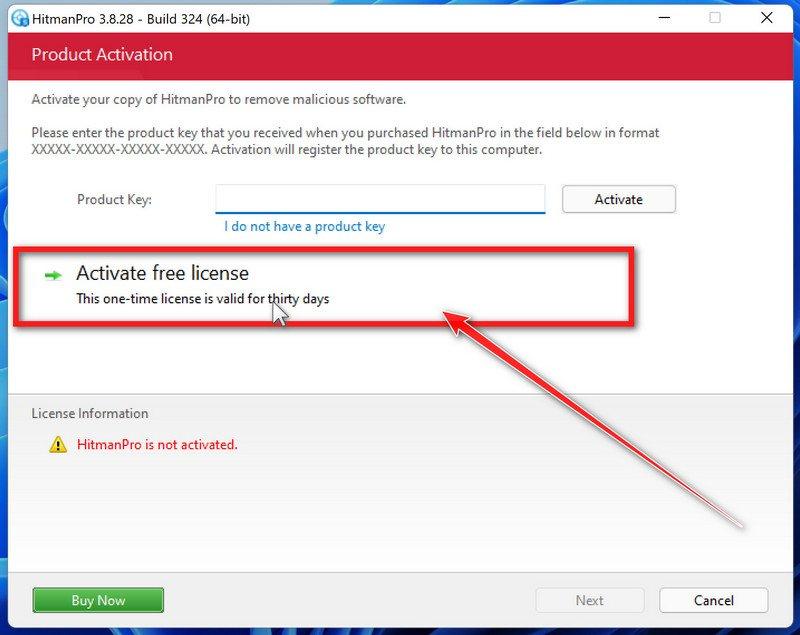
Click on “Activate free license”.
HitmanPro may now require to activate the free 30-days trial to remove the malicious files. To do this, click on the “Activate free license” button to begin the free 30 days trial and remove all the malicious files from your computer.
When the malware removal process is complete, it will display a screen that shows the status of the various programs that were removed. At this screen, you should click on the Next button and then if prompted you should click on the Reboot button. If HitmanPro does not prompt you to reboot, please just click on the Close button.
STEP 5: Use AdwCleaner to remove adware and malicious browser policies
In this final step, we will use AdwCleaner to remove the malicious browser policies that were set by browser hijackers on your computer and delete malicious browser extensions.
AdwCleaner is a free popular on-demand scanner that can detect and remove malware that even the most well-known anti-virus and anti-malware applications fail to find. This on-demand scanner includes a lot of tools that can be used to fix the side effects of adware. browser hijackers and other malware.
Download AdwCleaner.
You can download AdwCleaner by clicking the link below.
ADWCLEANER DOWNLOAD LINK (The above link will open a new web page from where you can download AdwCleaner)
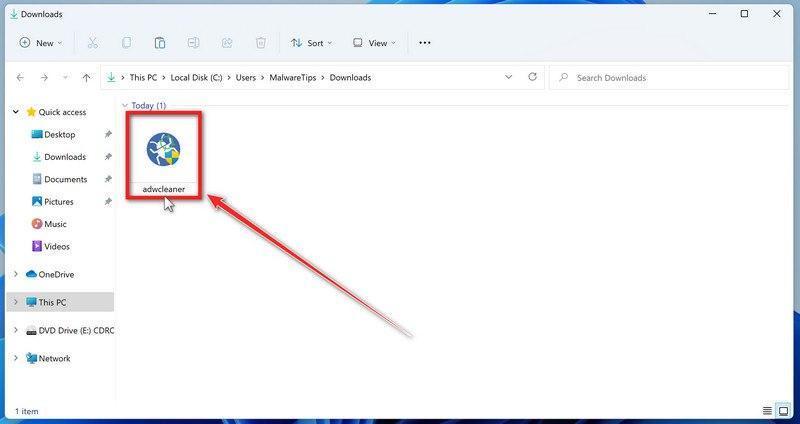
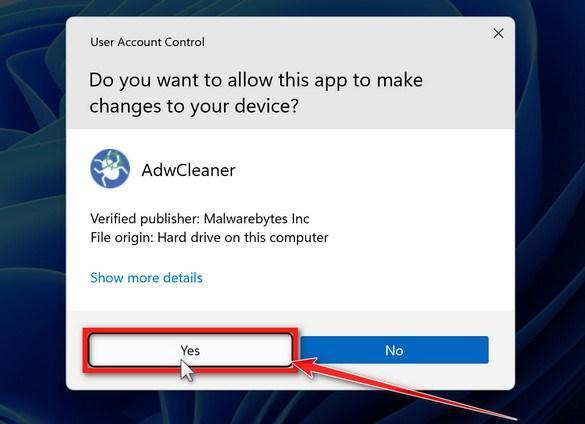
Double-click on the setup file.
Double-click on the file named “adwcleaner_x.x.x.exe” to start AdwCleaner. In most cases, downloaded files are saved to the Downloads folder.
AdwCleaner program will now open and you will be presented with the program’s license agreement. After you read it, click on the I agree button if you wish to continue. If Windows prompts you as to whether or not you wish to run AdwCleaner, please allow it to run.
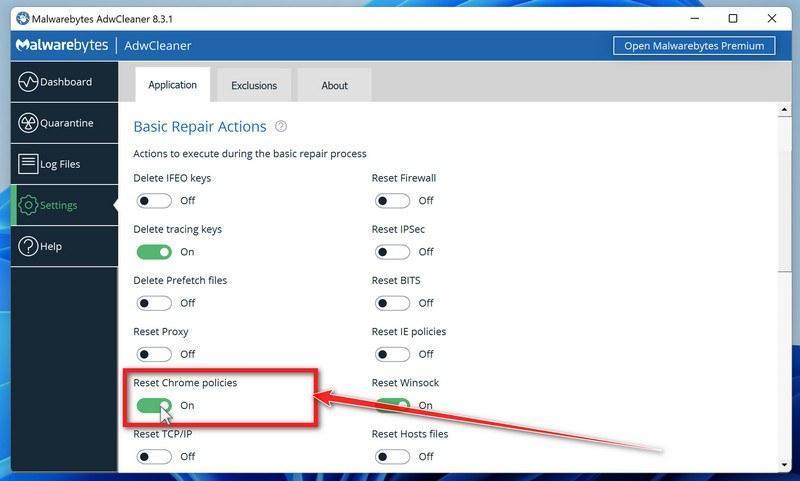
Enable “Reset Chrome policies” to remove malicious browser policies.
When AdwCleaner starts, on the left side of the window, click on “Settings” and then enable “Reset Chrome policies“.
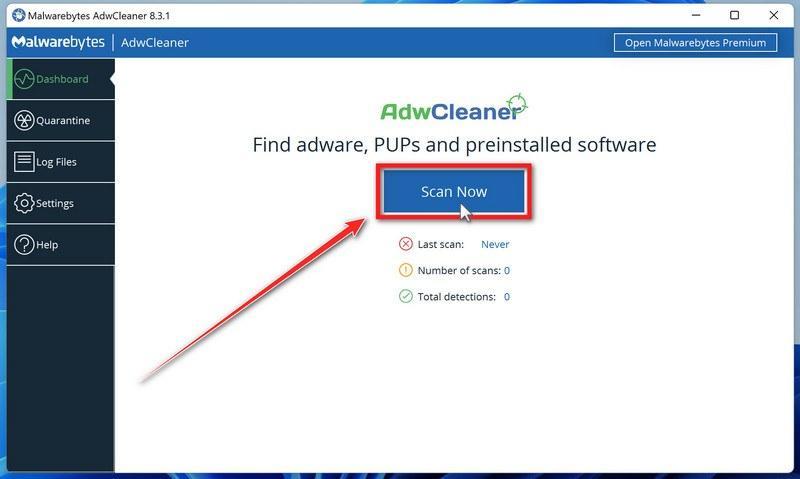
Click on the “Scan” button.
On the left side of the AdwCleaner window, click on “Dashboard” and then click “Scan” to perform a computer scan.
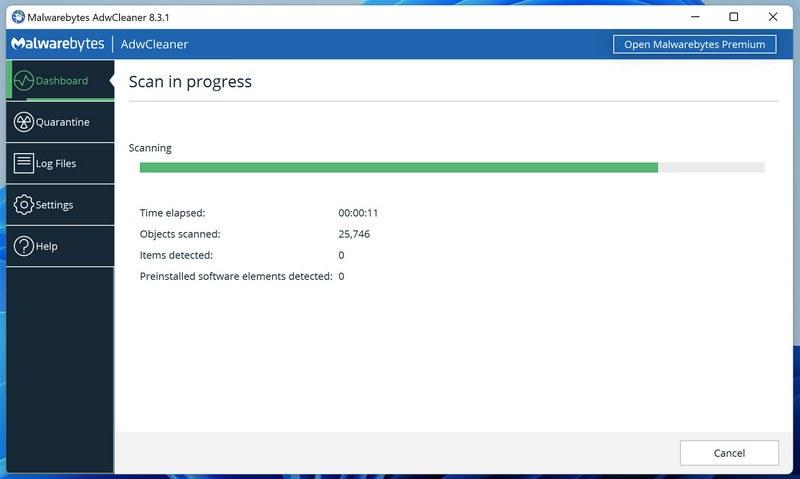
Wait for the AdwCleaner scan to finish.
AdwCleaner will now scan your computer for malware. This process can take a few minutes.
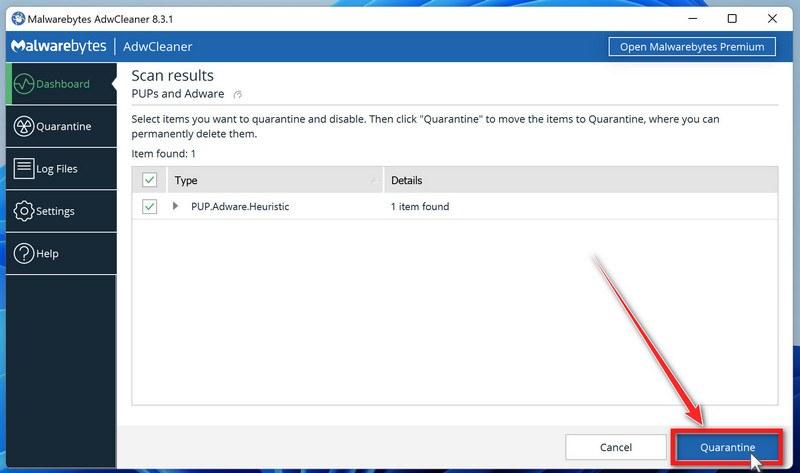
Click on “Quarantine” to remove malware.
When the AdwCleaner scan is completed it will display all of the items it has found. Click on the “Quarantine” button to remove the malicious programs from your computer.
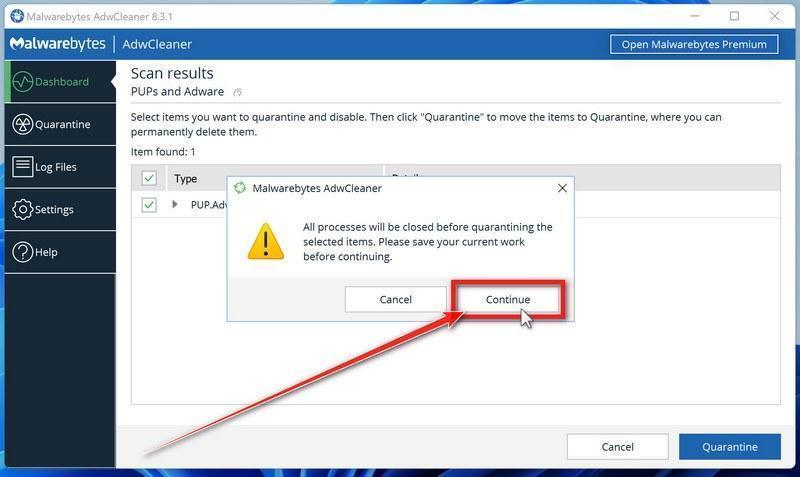
Click on “Continue” to remove the malicious programs.
AdwCleaner will now prompt you to save any open files or data as the program will need to close any open programs before it starts to clean. Click on the “Continue” button to finish the removal process.
AdwCleaner will now delete all detected malware from your computer. When the malware removal process is complete, you may be asked to restart your computer.
Your computer should now be free of the Apple iPhone 14 Winner pop-up ads and other malware.
If your current antivirus allowed this malicious program on your computer, you may want to consider purchasing Malwarebytes Premium to protect against these types of threats in the future. If you are still having problems with your computer after completing these instructions, then please follow one of the steps:
Here are 10 basic security tips to help you avoid malware and protect your device:
Use a good antivirus and keep it up-to-date.
It's essential to use a good quality antivirus and keep it up-to-date to stay ahead of the latest cyber threats. We are huge fans of Malwarebytes Premium and use it on all of our devices, including Windows and Mac computers as well as our mobile devices. Malwarebytes sits beside your traditional antivirus, filling in any gaps in its defenses, and providing extra protection against sneakier security threats.
Keep software and operating systems up-to-date.
Keep your operating system and apps up to date. Whenever an update is released for your device, download and install it right away. These updates often include security fixes, vulnerability patches, and other necessary maintenance.
Be careful when installing programs and apps.
Pay close attention to installation screens and license agreements when installing software. Custom or advanced installation options will often disclose any third-party software that is also being installed. Take great care in every stage of the process and make sure you know what it is you're agreeing to before you click "Next."
Install an ad blocker.
Use a browser-based content blocker, like AdGuard. Content blockers help stop malicious ads, Trojans, phishing, and other undesirable content that an antivirus product alone may not stop.
Be careful what you download.
A top goal of cybercriminals is to trick you into downloading malware—programs or apps that carry malware or try to steal information. This malware can be disguised as an app: anything from a popular game to something that checks traffic or the weather.
Be alert for people trying to trick you.
Whether it's your email, phone, messenger, or other applications, always be alert and on guard for someone trying to trick you into clicking on links or replying to messages. Remember that it's easy to spoof phone numbers, so a familiar name or number doesn't make messages more trustworthy.
Back up your data.
Back up your data frequently and check that your backup data can be restored. You can do this manually on an external HDD/USB stick, or automatically using backup software. This is also the best way to counter ransomware. Never connect the backup drive to a computer if you suspect that the computer is infected with malware.
Choose strong passwords.
Use strong and unique passwords for each of your accounts. Avoid using personal information or easily guessable words in your passwords. Enable two-factor authentication (2FA) on your accounts whenever possible.
Be careful where you click.
Be cautious when clicking on links or downloading attachments from unknown sources. These could potentially contain malware or phishing scams.
Don't use pirated software.
Avoid using Peer-to-Peer (P2P) file-sharing programs, keygens, cracks, and other pirated software that can often compromise your data, privacy, or both.
To avoid potential dangers on the internet, it's important to follow these 10 basic safety rules. By doing so, you can protect yourself from many of the unpleasant surprises that can arise when using the web.

 Remove Apple iPhone 14 Winner from Windows
 Remove Apple iPhone 14 Winner from Mac
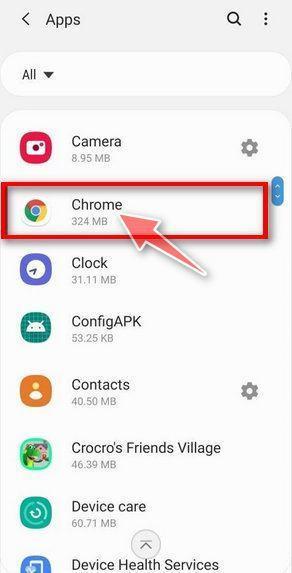
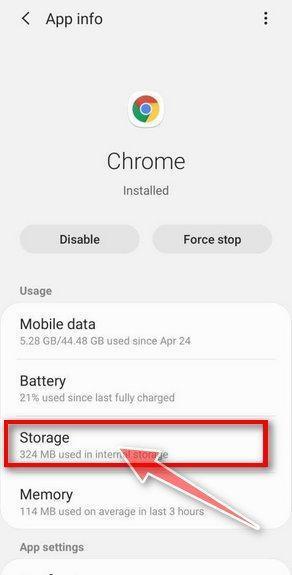
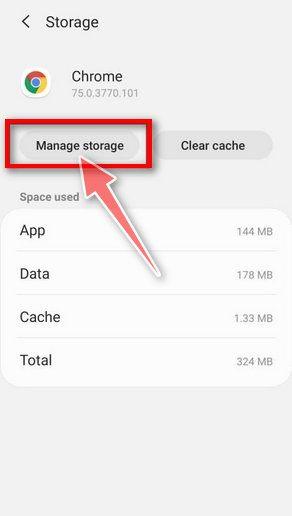
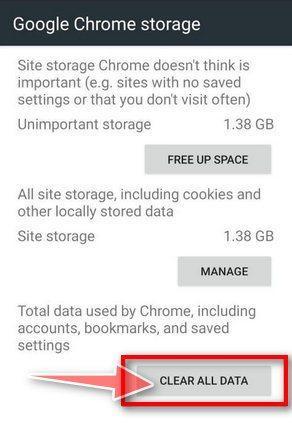
 Remove Apple iPhone 14 Winner from Android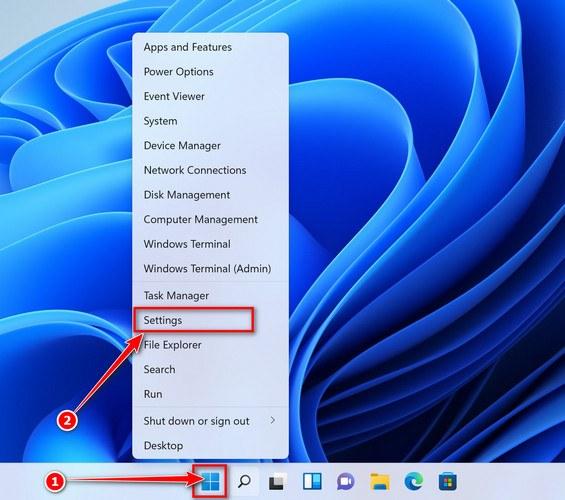
 If you have checked your computer for malicious programs and did not find any, you can proceed with the next step in this guide.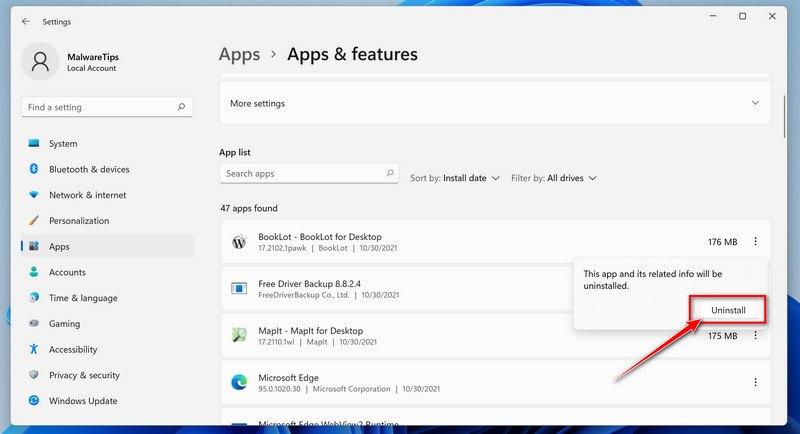
 MALWAREBYTES FOR WINDOWS DOWNLOAD LINK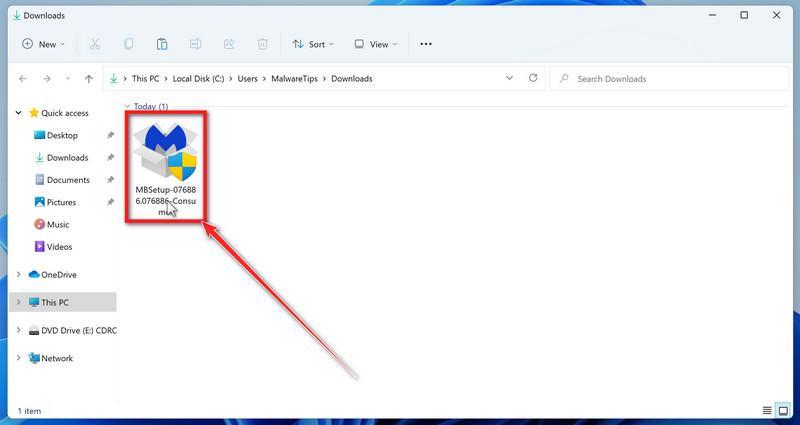
 HITMANPRO DOWNLOAD LINK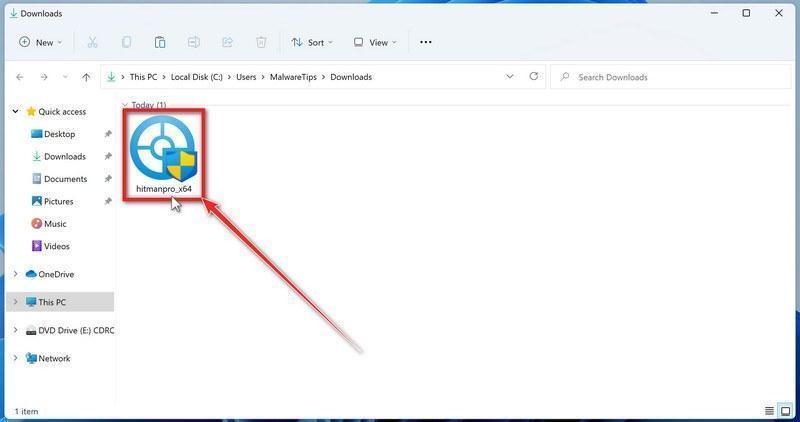
































0 Comments